
DocsOperate
Budgets
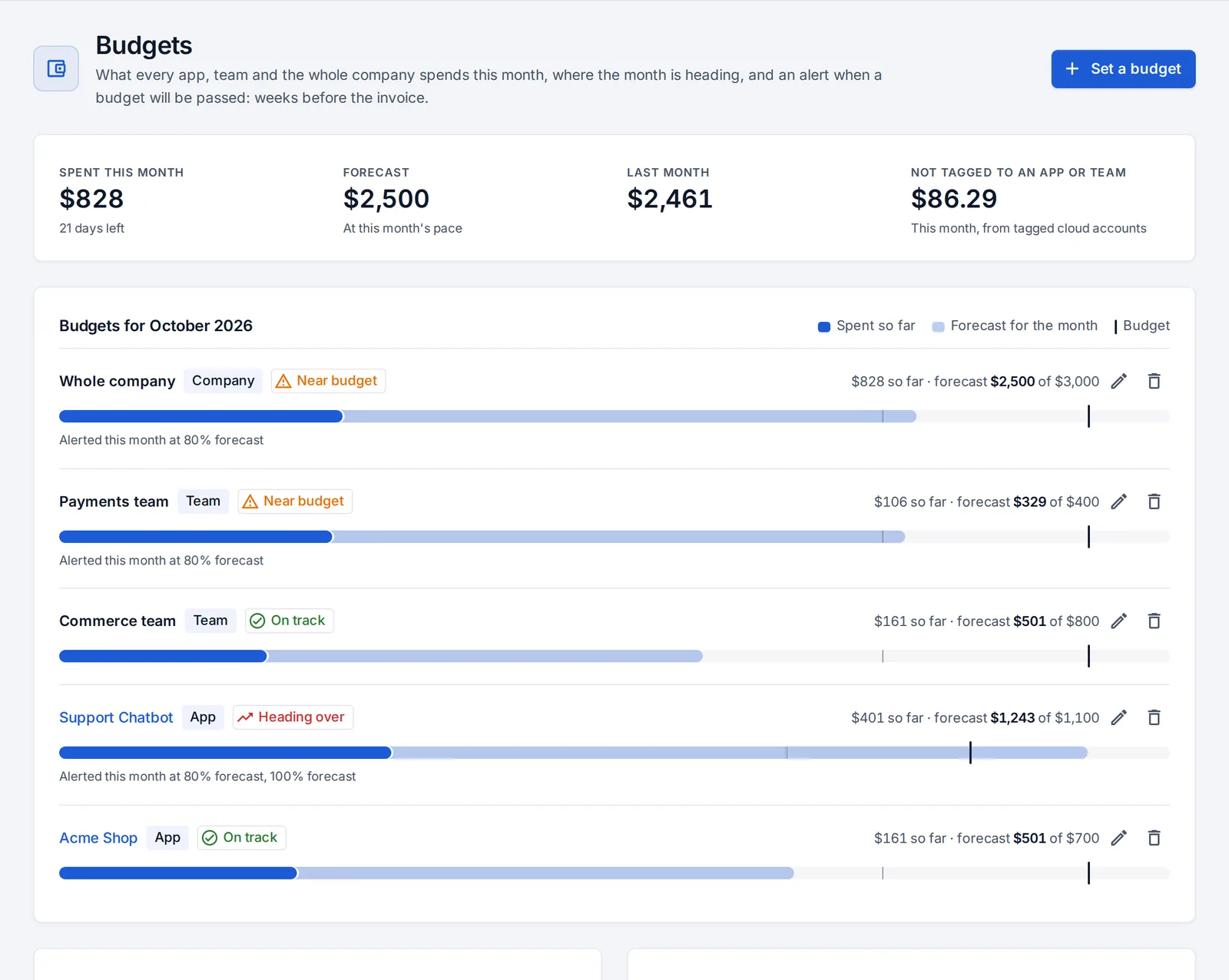
A monthly budget for an app, a team or the whole company. OpsNexa Online forecasts where the month is heading and warns people weeks before the bill arrives.
Cloud bills usually surprise people at the end of the month, when nothing can be done about them. With budgets, OpsNexa Online works out where each month is heading. It tells the people responsible as soon as a budget looks like it will be passed, while there is still time to act.
Where the numbers come from
| Source | Counts towards | Set it up |
|---|---|---|
| Cloud accounts (AWS, Google Cloud, Azure) | The whole company: every account's actual spend, as on the Cost page | Connect the account on Connections |
| A cost allocation tag on a cloud account | An app, when the tag's value is the app's name or address name (like acme-shop). A team, when the value is the team's name (like payments) | Add Cost allocation tag to the connection, for example app or team |
| A monthly price on a server or Kubernetes cluster | The apps on it, split by their memory size | Add Monthly price (USD) to the server or cluster connection |
A team's spend is the spend of the apps it owns (see Teams), plus spend tagged with the team's name.
OpsNexa Online reads cloud spend once a day: every account that has been opened on the Cost page, and every account with a cost allocation tag. Prices on servers and clusters count right away. Spend in a cloud account without the tag shows as Not tagged to an app or team, so you can see how much is not assigned to anyone.
The forecast
The forecast assumes the rest of the month goes like the part already behind us. In the first three days of a month, it uses last month's total instead (or what has been spent, if that is more), because a day or two says little. A server's or cluster's monthly price counts in full.
Set a budget
- On Budgets, press Set a budget.
- Choose the whole company, a team or an app.
- Enter the monthly amount. The form shows last month's spend and this month's forecast to help you pick a number.
- Choose the alert thresholds. The defaults are 80% and 100% of the budget, measured against the forecast.
Admins can set any budget. A team's leads can set the budget for their team and for the apps their team owns.
Alerts
OpsNexa Online checks every budget every hour. It sends a budget alert:
- once a month for each threshold the forecast reaches, for example “Support Chatbot is on track to spend $1,243 this month, over its $1,100 budget”;
- once when what has actually been spent passes the budget.
When several thresholds are crossed at once, one message goes out, with the most serious news. Alerts go to your notification channels (Slack, email, webhooks), including the channels of the team that owns the app. Members of the team also get them by email, if they have turned on My team or its apps are on track to go over budget under My notifications.
If you change a budget's amount, the alerts already sent for it this month are cleared, so the new amount gets its own warnings.
On an app
An app's Overview shows what the app has cost this month, its forecast and its budget.

Something unclear or missing? Tell us, or press the ? at the top of OpsNexa Online for the guide and tours inside the product.