
DocsConnect your infrastructure
Connect a server
Any Linux machine with Docker, reached over SSH, becomes a place OpsNexa Online builds and runs your apps, with addresses and HTTPS.
A server is a Linux machine with Docker that OpsNexa Online reaches over SSH: a cloud VM, a machine in your office, or a Proxmox or VMware VM. OpsNexa Online builds your apps on it (no registry needed), runs them, and installs a small proxy that gives each app its address and HTTPS.
Before you start
- A Linux machine with Docker installed.
- An SSH user that may run
docker(root, or a user in thedockergroup). - A domain for the apps, with a wildcard DNS record pointing at the server. For example
*.apps.example.com → 203.0.113.10. Each app then gets<app>.apps.example.com. - For automatic HTTPS: ports 80 and 443 open to the internet.
Add the server
- Open Connections and press Add connection.
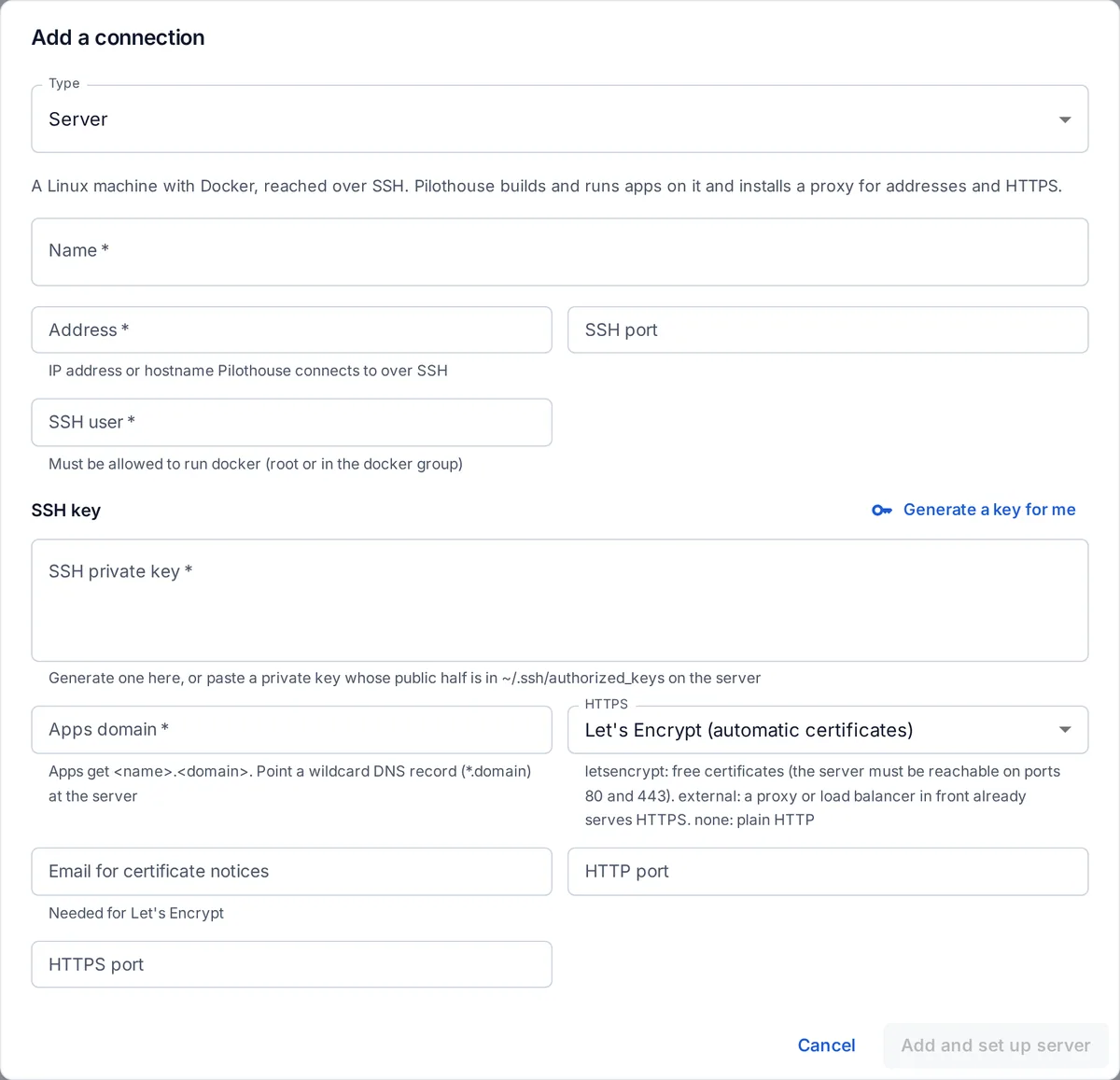
- Choose Server and give it a name, like “Hetzner Falkenstein” or “Office NUC”.
- Enter its address (IP or hostname), the SSH port (22 by default) and the SSH user.
- Under SSH key, press Generate a key for me. OpsNexa Online shows a command; run it on the server to add the public key to
~/.ssh/authorized_keys. (Or paste a private key you already use.) - Enter the Apps domain you pointed at the server.
- Choose HTTPS:
- Let’s Encrypt: free certificates, issued and renewed automatically. Add an email for certificate notices.
- External: a proxy or load balancer in front of the server already serves HTTPS.
- None: plain HTTP (fine for trying things out).
- Press Add and set up server. OpsNexa Online connects, checks Docker, and starts its proxy.
After it’s connected
The server appears under Connections → Servers with its status, the apps that use it and when it was last checked. From its card you can test the connection, edit it, or remove it.
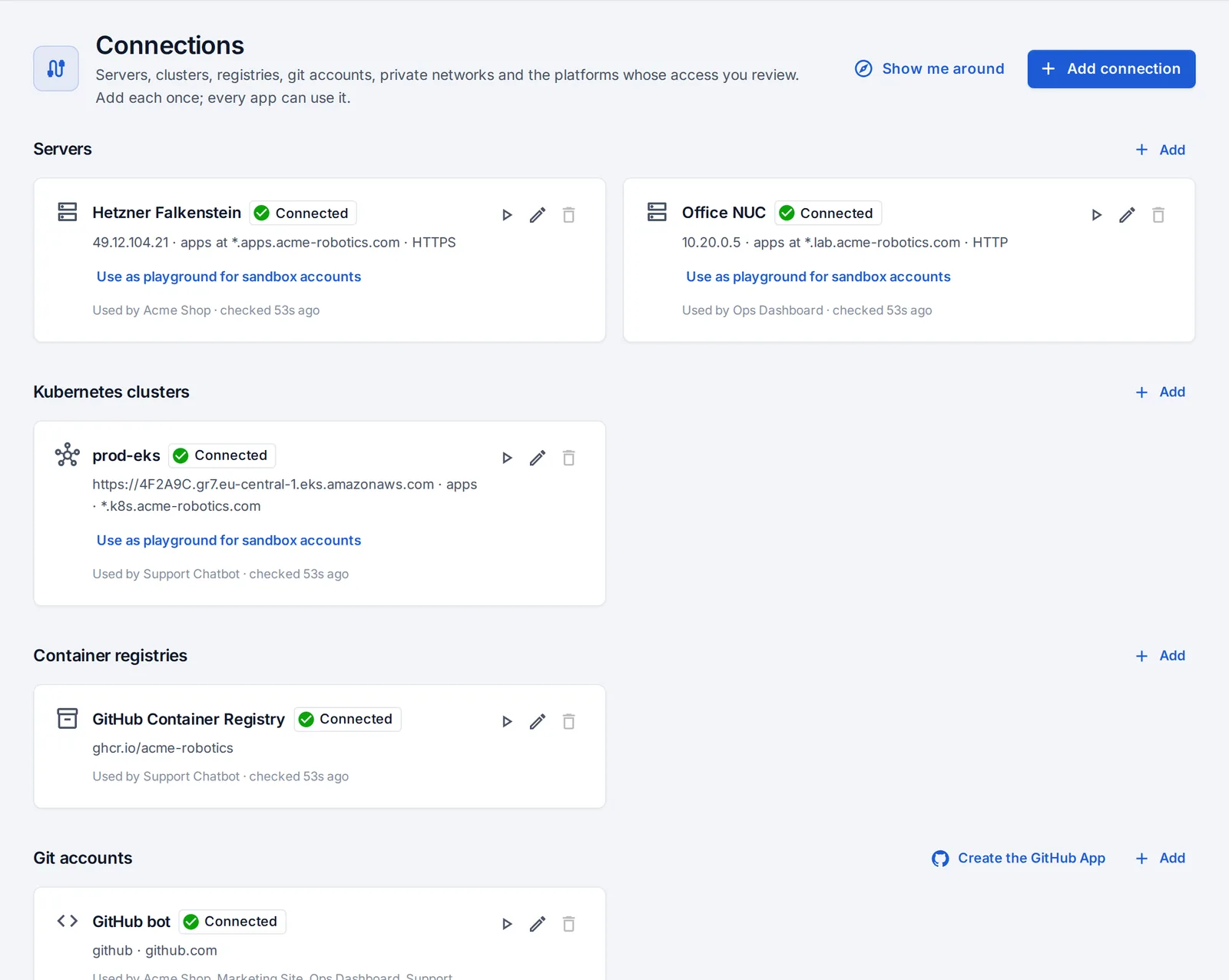
- Use as playground for sandbox accounts lets people with the sandbox role deploy their own short-lived apps there. See Invite your team.
- To move an app to another server, open the app’s Settings. It’s rebuilt on the new server, and the old copy is removed once the new one answers.
- Add as many servers as you like; each app picks one.
Servers without a public address
If the machine is in your office or a private network and OpsNexa Online can’t reach it over the internet, run the private network agent there first, then add the server as usual with its private address.
Troubleshooting
| What you see | What to check |
|---|---|
| Permission denied (publickey) | The public key isn’t in ~/.ssh/authorized_keys of that user, or the user is wrong. |
| Docker isn’t available | Docker isn’t installed or running, or the user isn’t allowed to run it. |
| Certificates aren’t issued | The wildcard DNS record doesn’t point at the server yet, or ports 80/443 are closed. |
| Protected apps ask to sign in over and over | The server must be able to reach your OpsNexa Online address over HTTPS. |
Something unclear or missing? Tell us, or press the ? at the top of OpsNexa Online for the guide and tours inside the product.