
DocsCode and infrastructure
Repositories and checks
Add your repositories and every push is checked: Terraform, Kubernetes files, Helm charts, Dockerfiles and pipelines, with findings kept over time and the monthly cost.
Repositories is where OpsNexa Online works on your actual code. Add a repository and OpsNexa Online finds the Terraform projects, Kubernetes manifests, Helm charts, Dockerfiles and GitHub Actions workflows in it, and checks them on every push.
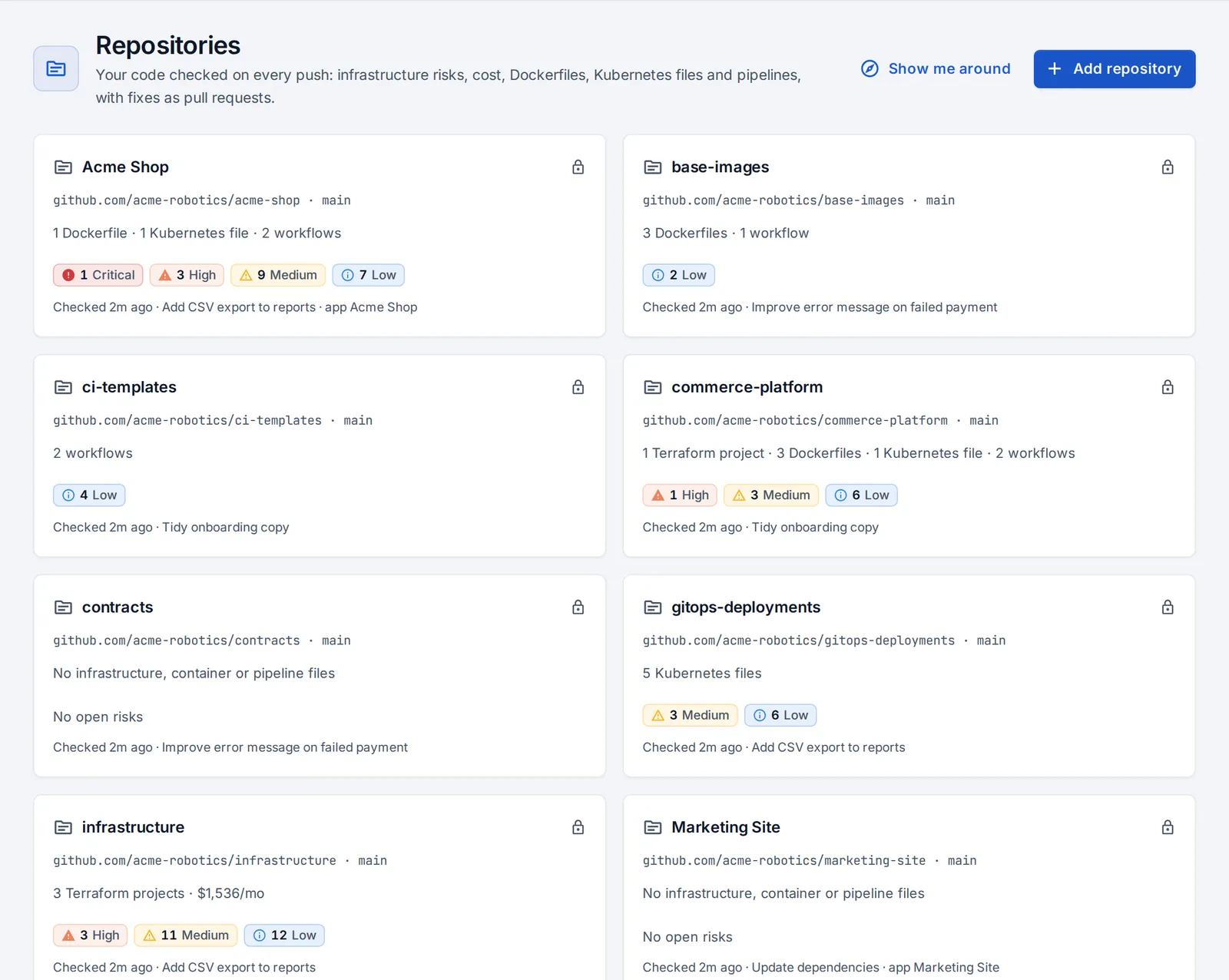
Add repositories
- Open Repositories and press Add repository.
- Pick from your git account’s list (private repositories work through the account’s token or the GitHub App), or paste an address.
- OpsNexa Online checks it straight away.
Every app’s repository is added on its own. With the GitHub App, the repositories you install it on appear here automatically.
What’s checked
| What | Examples | |
|---|---|---|
| Terraform | Internet exposure, encryption, IAM wildcards, hardcoded secrets, IMDSv2, EKS hardening, public S3, unpinned modules and providers, remote state, tagging | |
| Kubernetes and Helm | Pod security, resources, probes, RBAC, secrets, removed API versions. Helm charts are rendered with their default values first. | |
| Dockerfiles | Running as root, unpinned base images, baked-in secrets, `curl | sh`, layer caching, multi-stage builds |
| GitHub Actions | Actions pinned to commits, GITHUB_TOKEN permissions, script injection, pull_request_target, static cloud keys instead of OIDC | |
| AI platforms | Model endpoints, notebooks, guardrails, invocation logging, private endpoints |
Findings, kept over time
Open a repository to see its findings by severity, where each one is (file and resource), and how to fix it.
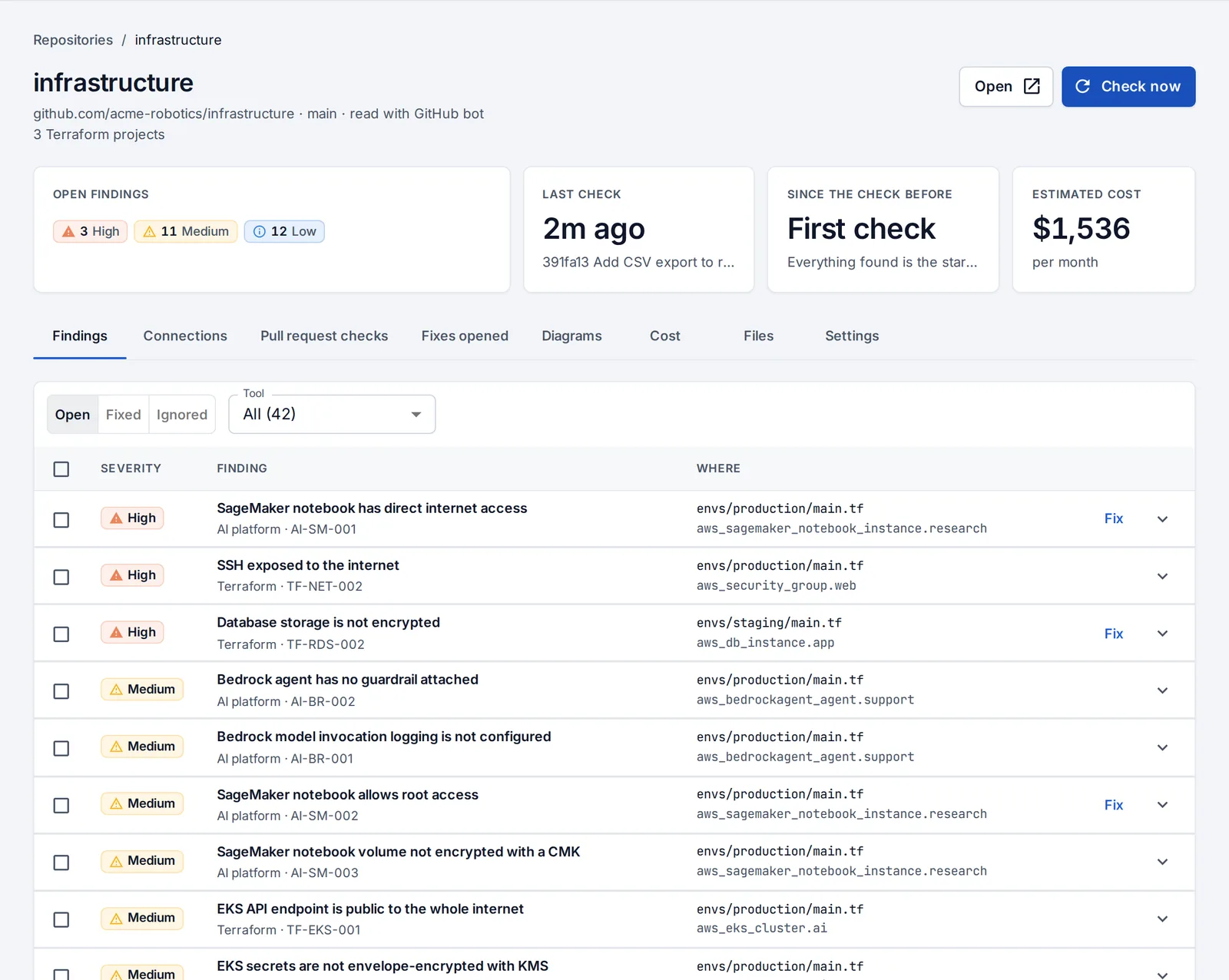
- The first check is the baseline. After that, each push shows what it brought in and what it fixed.
- Checks follow the branch: every few minutes, or right away with the push webhook (shown under the repository’s Settings; not needed with the GitHub App).
- Ignore a finding with a reason. It comes back if you change your mind.
- Fix opens a pull request. See Pull requests and fixes.
Cost
The Cost tab estimates what each Terraform project costs per month, per category and per resource, resolving count and variable defaults. It covers EC2, RDS, EKS, NAT gateways, load balancers, GPU instances, SageMaker endpoints and the basics on Google Cloud and Azure.
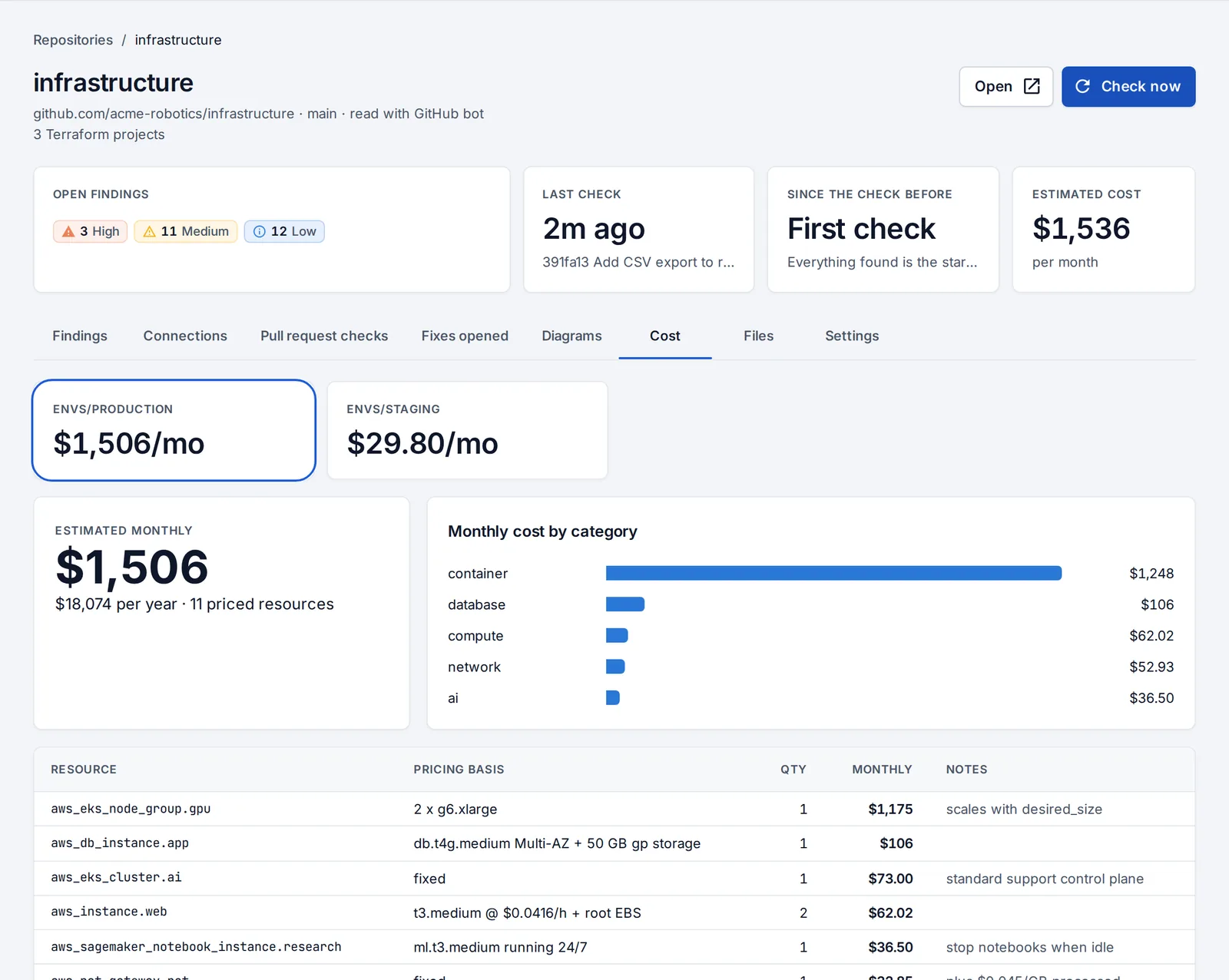
With a cloud account connected, OpsNexa Online also shows what AWS, Google Cloud or Azure actually charged next to the estimate, per service, and what your Terraform doesn’t manage at all.
Diagrams
The Diagrams tab draws each Terraform project as an editable architecture diagram, nested cloud → network → subnet, with findings pinned to the resources they affect. You can also change infrastructure from it. See Change infrastructure from the diagram.
Share makes a read-only link for people without an account: resources, how they connect, and the monthly estimate. Findings are left out and anything that looks like a password or key is hidden. Turn it off at any time.
Something unclear or missing? Tell us, or press the ? at the top of OpsNexa Online for the guide and tours inside the product.