
DocsTeam and account
Invite your team
Invite people by email with a role, let colleagues join on their own, and give everyone a safe sandbox to try deploying.
Invite people
- Open Users and press Invite people.
- Enter one or more email addresses, separated by commas or new lines.
- Pick a role (see Roles) and press Invite.
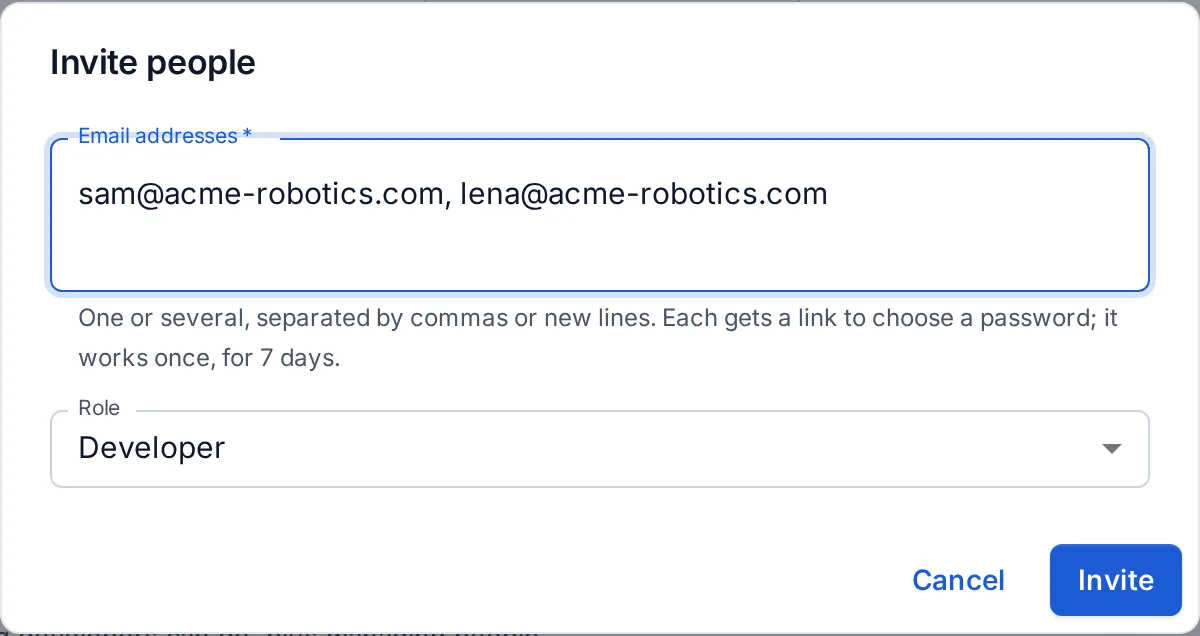
Each person gets an email with a link, valid for 7 days, to choose a password or sign in with single sign-on. If your OpsNexa Online can’t send email, you get the links to copy instead. Pending invites can be sent again or withdrawn.
When they first sign in, they get a short welcome that says what their role can do, with a link to the guide and a two-minute tour.
Who can join on their own
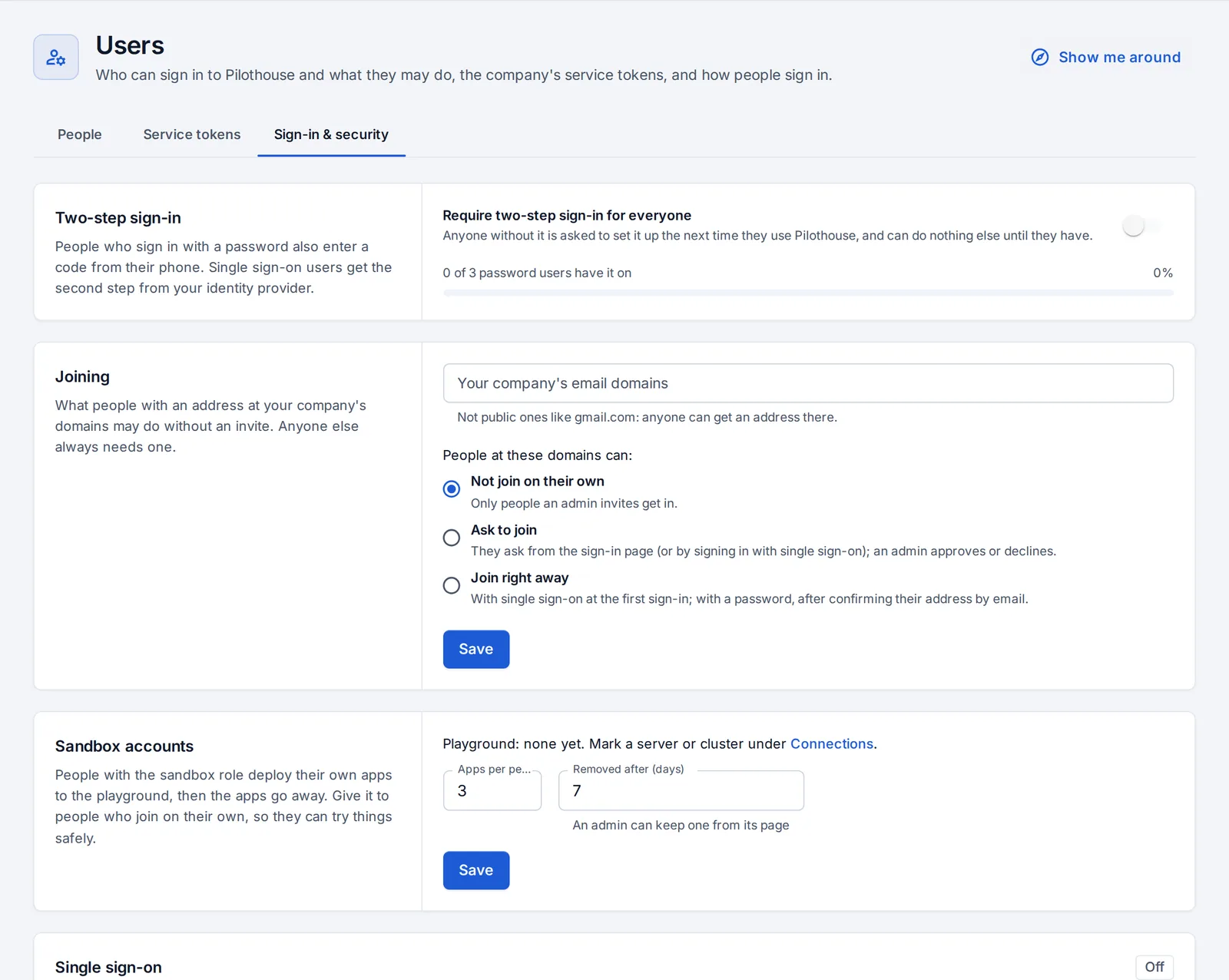
Under Users → Sign-in & security → Joining, decide what happens when someone with a company email address (your domains; public webmail like gmail.com is refused) arrives without an invite:
| Choice | What happens |
|---|---|
| Not join on their own | Only people an admin invites get in. The default. |
| Ask to join | They ask from the sign-in page; admins are emailed and approve or decline under Users, choosing the role. Home shows waiting requests. |
| Join right away | They get in with the role you pick, after confirming their email address. |
It works for single sign-on and for password sign-up.
Sandbox accounts
To let everyone try deploying without touching what matters, give people the sandbox role, directly or as the joining role.
- Under Connections, mark a server or cluster Use as playground for sandbox accounts.
- Under Users → Sign-in & security → Sandbox accounts, set how many apps each person may have (3 by default) and after how many days they’re removed (7 by default).
Sandbox accounts create apps only on playground servers, change only the apps they created, and see everything else like a tester. When an app is about to be removed, its owner is emailed; an admin can press Keep it on the app to keep it.
Passwords
Forgot password? on the sign-in page emails a reset link, valid for an hour. An admin can also make a reset link for someone under Users → People. Resetting a password signs that person out everywhere.
When someone leaves
Disable their account under Users, or better, offboard them: that removes their access from every platform, not just OpsNexa Online.
Something unclear or missing? Tell us, or press the ? at the top of OpsNexa Online for the guide and tours inside the product.