
DocsShip apps
Previews and promotion
A preview for every branch, then put the exact build you tested into production, with approval if you want it.
Previews for every branch
With previews on (a switch in the app’s Settings, or when you create it), every branch other than the production one gets its own copy of the app at its own address, like feature-checkout--acme-shop.apps.example.com. It updates on every push to that branch and is removed when the branch goes away.
Previews use the app’s settings, unless a setting has its own value for previews. See Settings, secrets and domains. They can also get their own database, empty or a masked copy of production. See Databases.
Promote a preview to production
Promote puts the exact build tested in a preview into production. Nothing is rebuilt; it runs with production’s settings and data. What you tested is what goes live.
- Open the app and find the preview on the Overview or Deployments tab.
- Press Promote.
- If production needs approval, it waits (below). Otherwise it goes live straight away.
Approvals for production
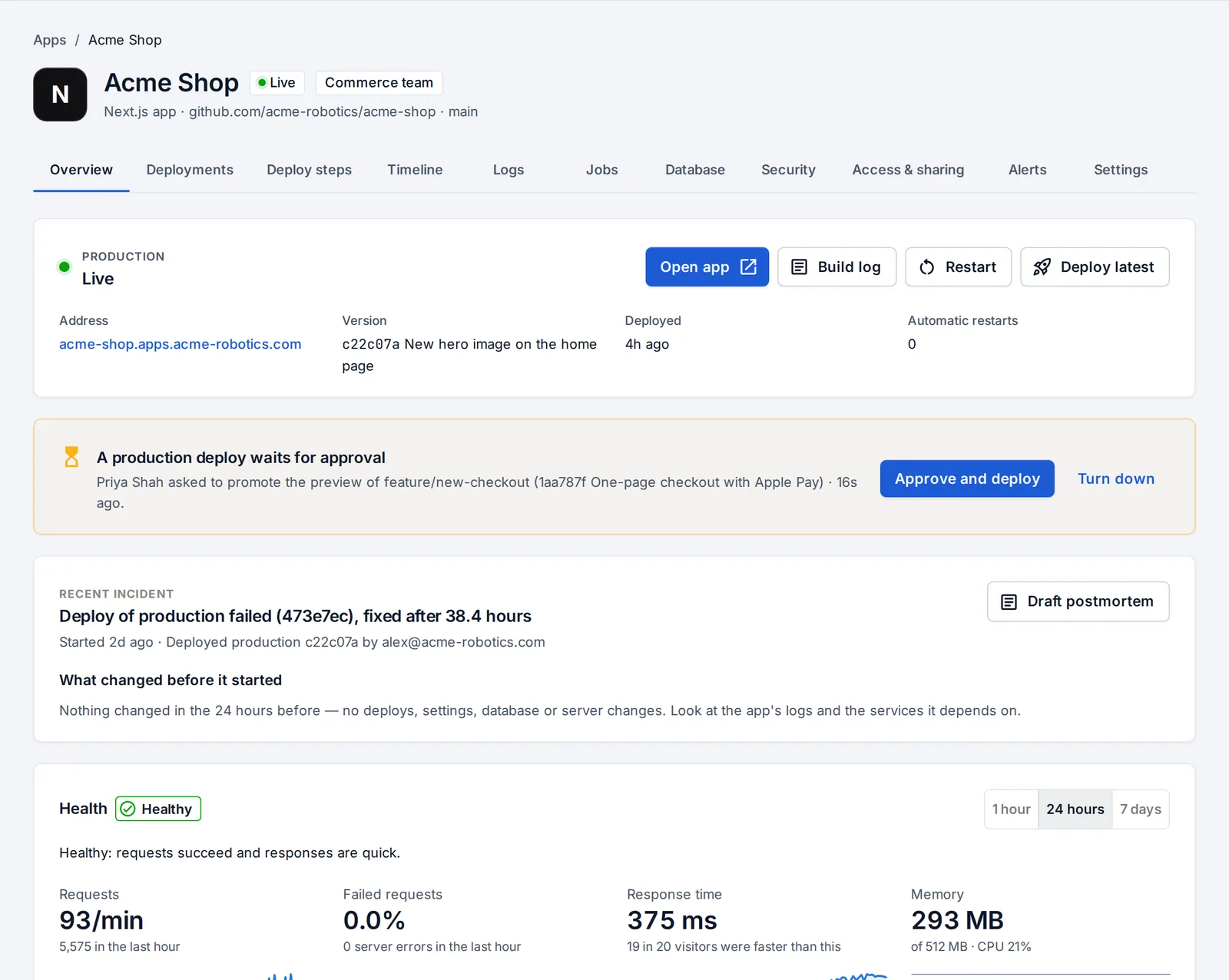
Admins can require approval for an app’s production deploys under Settings → Production approvals. Manual deploys, pushes, promotes and moves to another server then wait until someone other than whoever asked approves them:
- an admin, or
- a lead of the team that owns the app (see Teams).
A waiting deploy shows on the app and on Home, and the approvers are notified. Approve and deploy puts it live; Turn down drops it. Rollbacks and restarts with new settings never wait, so you can always get back to a working state.
Something unclear or missing? Tell us, or press the ? at the top of OpsNexa Online for the guide and tours inside the product.