
DocsShip apps
Deploy an app
From a repository link to a live app with its own address, in four steps. Every push redeploys it.
An app is code from a repository that OpsNexa Online builds and runs on one of your servers or clusters, at its own address. You don’t write a Dockerfile or a pipeline: OpsNexa Online detects Next.js, Vite and React, Node, FastAPI, Flask, Django, Go and static sites, or uses your own Dockerfile, and builds a hardened image.
Before you start, connect at least one server or cluster. For a private repository, connect a git account or the GitHub App.
Create the app
Open Apps and press New app. There are four short steps; nothing is deployed until you press Deploy, and every choice can be changed later.
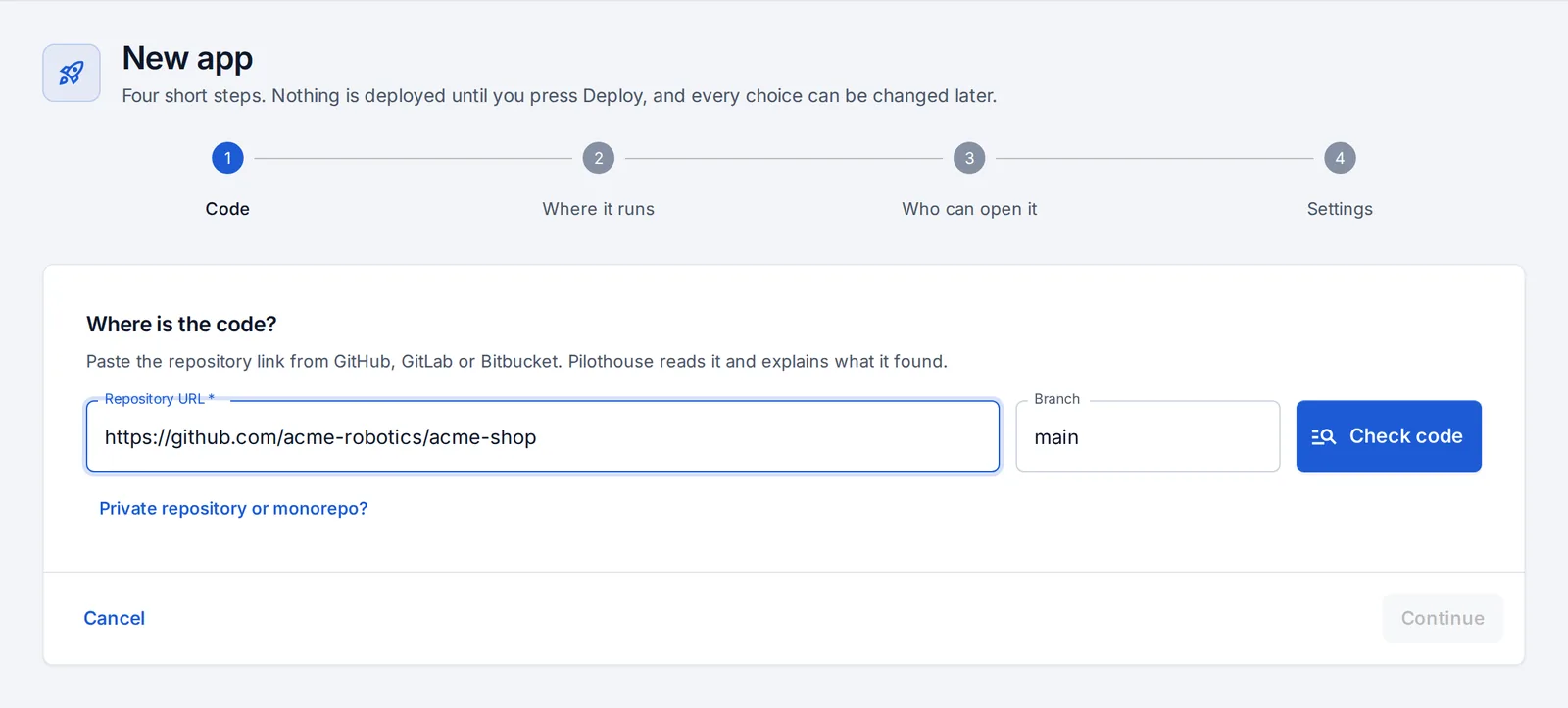
- Code. Paste the repository link and pick the branch, then press Check code. OpsNexa Online reads the repository and says what it found: the framework, the port, the settings the code reads. For a monorepo, give the folder inside the repository.
- Where it runs. Pick a server or a Kubernetes cluster. You can move the app later. (A deploy kit is also offered: a zip with the Dockerfile, the platform’s config and a step-by-step guide for Fly.io, Render, Railway or any Docker host, if you’d rather run it there yourself.)
- Who can open it.
- Password: anyone with the password (or a share link). Good for testers and clients.
- Team only: only people signed in to OpsNexa Online, plus anyone you send a share link.
- Public: anyone on the internet who knows the address.
- Settings. Name the app, fill in the settings and secrets your code reads (OpsNexa Online lists the ones it found), and choose whether every new branch gets its own preview. Optionally add your own domain, the port and a health check path.
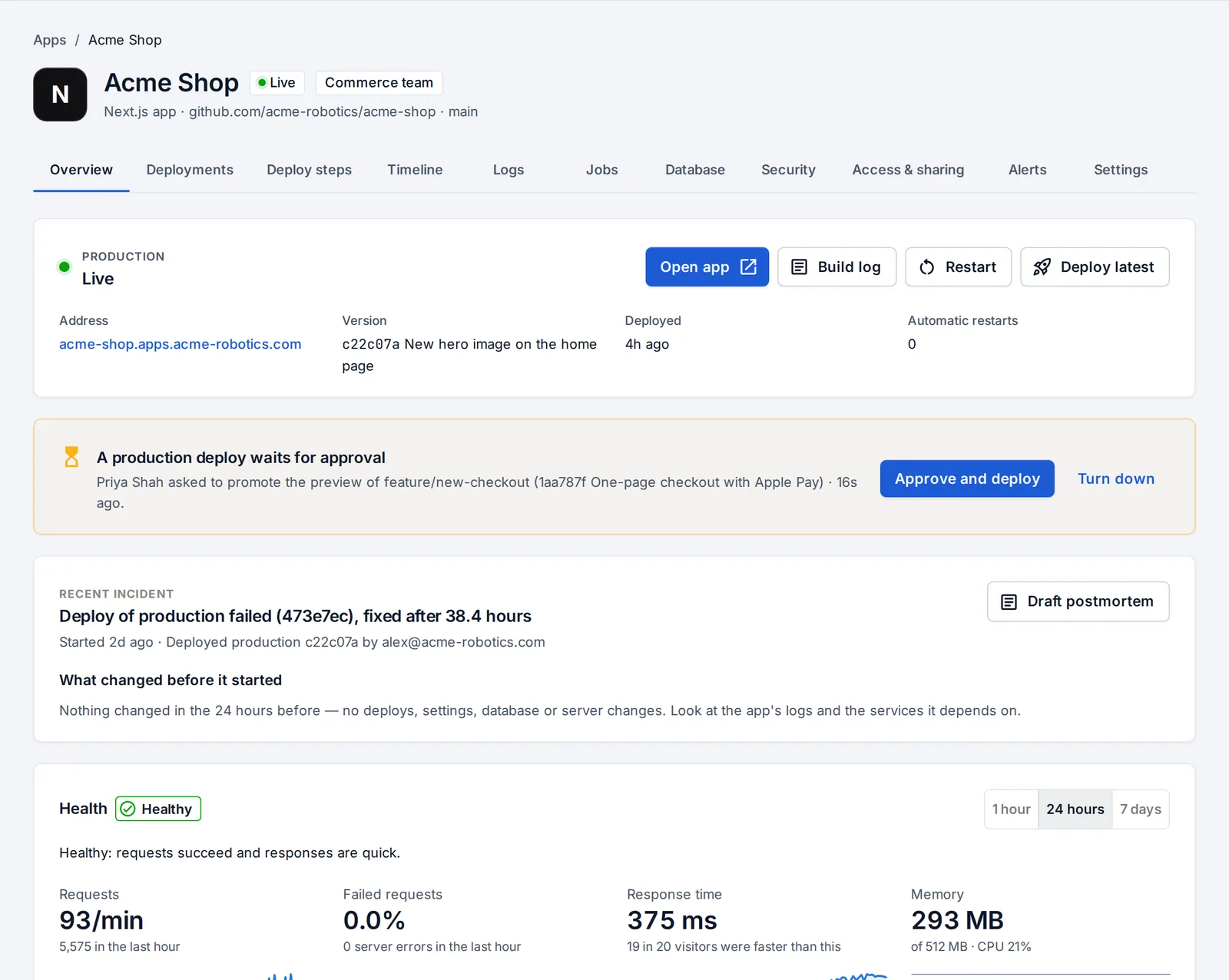
Press Deploy and watch the build log. When it’s live, the app’s page shows its address.
What happens next
- Every push redeploys it. OpsNexa Online checks the branch every minute. For instant deploys, add the webhook shown on the app’s Settings tab (not needed with the GitHub App).
- Every other branch gets a preview at its own address, if you turned previews on. See Previews and promotion.
- If it crashes, it’s restarted, and you’re told why. See Health and crashes.
- If a deploy fails, it says why in plain words. See When a deploy fails.
- Need migrations or tests around it? Add deploy steps.
The app’s tabs
| Tab | What it’s for |
|---|---|
| Overview | Address, the live version, health, approvals waiting, and what changed before the last problem |
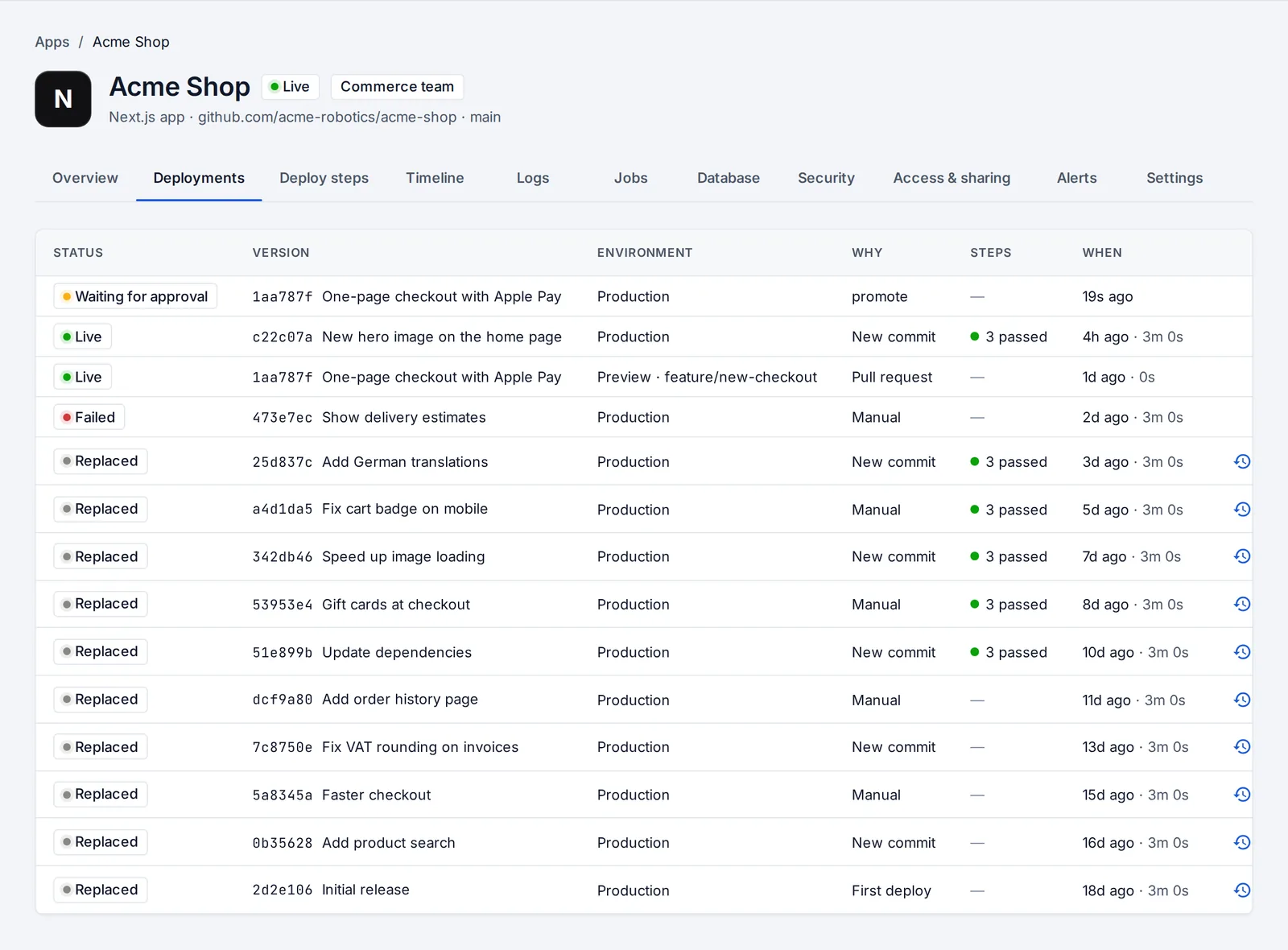
| Deployments | Every version, who started it and why, how its deploy steps went, with Restore to roll back |
| Deploy steps | Your own actions around deploys: migrations, test workflows, webhooks, checks. See Deploy steps. |
| Timeline | Everything that happened to the app, next to every problem |
| Logs | Live logs, search, errors only, and recent crashes explained |
| Jobs | Scheduled jobs and workers (apps on servers) |
| Database | PostgreSQL or Redis, backups, restore drills and preview data |
| Security | Known vulnerabilities in the image the app runs |
| Access & sharing | Who can open it, and share links |
| Alerts | Vulnerable dependencies and runtimes that stop getting security fixes |
| Settings | Settings and secrets, branch, size, domains, approvals, moving it to another server |
Rolling back
Open Deployments and press Restore next to any earlier version. It goes live straight away, with no rebuild. Rollbacks never wait for approval.
Something unclear or missing? Tell us, or press the ? at the top of OpsNexa Online for the guide and tours inside the product.