
DocsConnect your infrastructure
Connect clouds without keys
AWS, Google Cloud and Azure trust OpsNexa Online's own identity, so no cloud key is stored. Every connection is read only unless you allow changes.
OpsNexa Online connects to AWS, Google Cloud and Azure without a stored key. Your cloud trusts your OpsNexa Online’s own identity. When OpsNexa Online needs to look, it gets credentials that last one hour. Nothing in OpsNexa Online, not even a copy of its database, can get into your cloud for longer than that, and you can cut access at any time from your side.
Every platform connection is also read only unless you allow changes, and the form shows exactly what each choice does and which permissions it needs.
How it works
Your OpsNexa Online is an OpenID Connect issuer at https://<your address>/api/identity, with its own signing key. Your cloud is told to trust that issuer, and only for the subject devops-hub.
When OpsNexa Online needs to read IAM users or costs:
- It signs a token for itself that is valid for five minutes.
- Your cloud checks the signature against the issuer’s public key.
- Your cloud returns credentials for the role or service account you chose, valid for one hour.
This is the same mechanism GitHub Actions and other CI systems use to deploy without keys. Each OpsNexa Online has its own issuer and key, so trusting yours never trusts anyone else’s.
| Cloud | What you create | What OpsNexa Online gets |
|---|---|---|
| AWS | An IAM identity provider for your OpsNexa Online and a role that trusts it | AssumeRoleWithWebIdentity: one-hour role credentials |
| Google Cloud | A workload identity pool and provider, and a service account it may act as | A federated token, then a one-hour token for the service account |
| Azure | An app registration with a federated credential (no client secret) | Client credentials signed by OpsNexa Online instead of a secret |
Connect a cloud
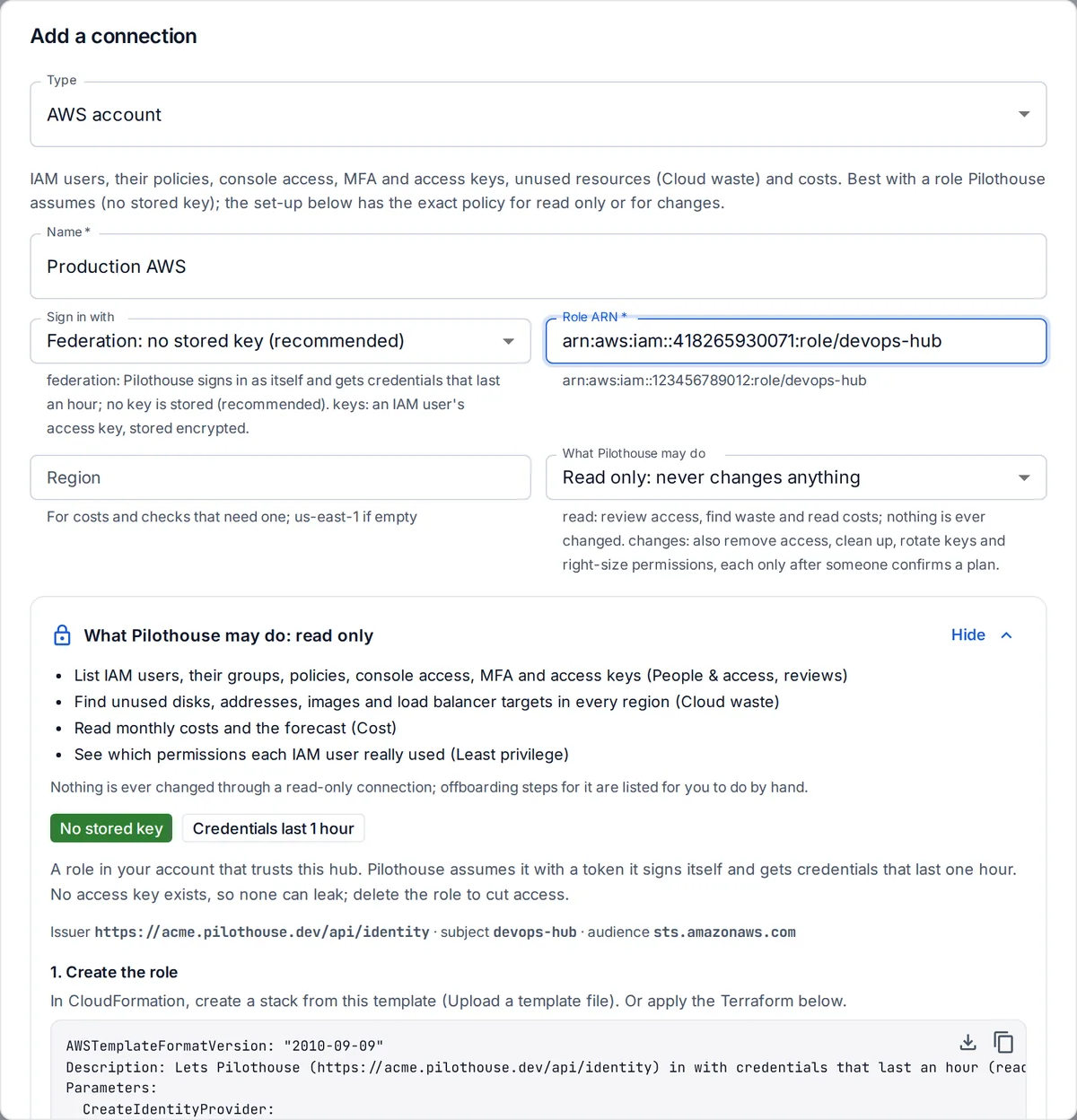
- Go to Connections, press Add connection and pick AWS account, Google Cloud project or Azure subscription.
- Leave Sign in with on federation.
- Choose What OpsNexa Online may do: read only, or changes (see below). The set-up below the form updates to match.
- Run the set-up shown:
- AWS: a CloudFormation template to upload, or the same in Terraform.
- Google Cloud:
gcloudcommands for Cloud Shell. - Azure: Azure CLI commands.
Each grants exactly the permissions listed under Exactly what it is allowed.
- Paste what it prints (the role ARN, or the workload identity provider and service account, or the tenant and client IDs) and press Add and test.
Read only or changes
| Read only | Changes allowed | |
|---|---|---|
| Review who has access, run access reviews | ✓ | ✓ |
| Find unused cloud resources, read costs, see unused permissions | ✓ | ✓ |
| Remove someone’s access when you confirm an offboarding or review | Listed for you to do by hand | ✓ |
| Clean up unused resources, rotate leaked keys, right-size permissions | Refused | ✓, after someone confirms the plan |
A read-only connection is enforced by OpsNexa Online and by the permissions you granted: the read-only set-up doesn’t include a single write permission. New connections start read only. Connections created before this setting existed keep the changes they were allowed.
Every other platform (GitHub, GitLab, Cloudflare, Grafana, Sentry, PagerDuty) has the same choice. Their forms list the token scopes for each.
Cut access
Delete the role (AWS), the workload identity provider or the service account binding (Google Cloud), or the federated credential (Azure). OpsNexa Online’s credentials stop working within the hour, and at once for anything new.
Something unclear or missing? Tell us, or press the ? at the top of OpsNexa Online for the guide and tours inside the product.